← Back to Projects
UX Case Study 02School ERP · Mobile UXParent Anxiety & Trust

Student Attendance & Parent Notifications.

A single attendance mistake could send an incorrect absence alert and leave parents worried about their child’s safety. The business objective was to make school communication more reliable, reduce avoidable verification calls, and protect parents’ trust. I redesigned attendance verification, the correction window, parent-informed leave, and notification controls so staff could check important updates before they reached families.

Project overview

Beta release
My role
UX Design & Interaction Strategy
Users
Teachers, Parents & Administrators
Platform
Web ERP & Mobile App
Design team
3 designersMe + 2 junior designers
Location
Tamil Nadu, India
Released
About the product

01One Platform. Multiple School Operations.

School ERP is a centralized platform designed to simplify academic, administrative, and financial operations. It brings timetables, attendance, examinations, fees, accounts, and school services into one connected system.

However, before schools could benefit from these features, they had to complete one essential task: onboard their student data.

What should have been a straightforward first step became one of the most frustrating experiences in the product.

School ERPConnected school operations
Module overview01 / 06
The Challenge

02One Wrong Tap. An Immediate Parent Alert.

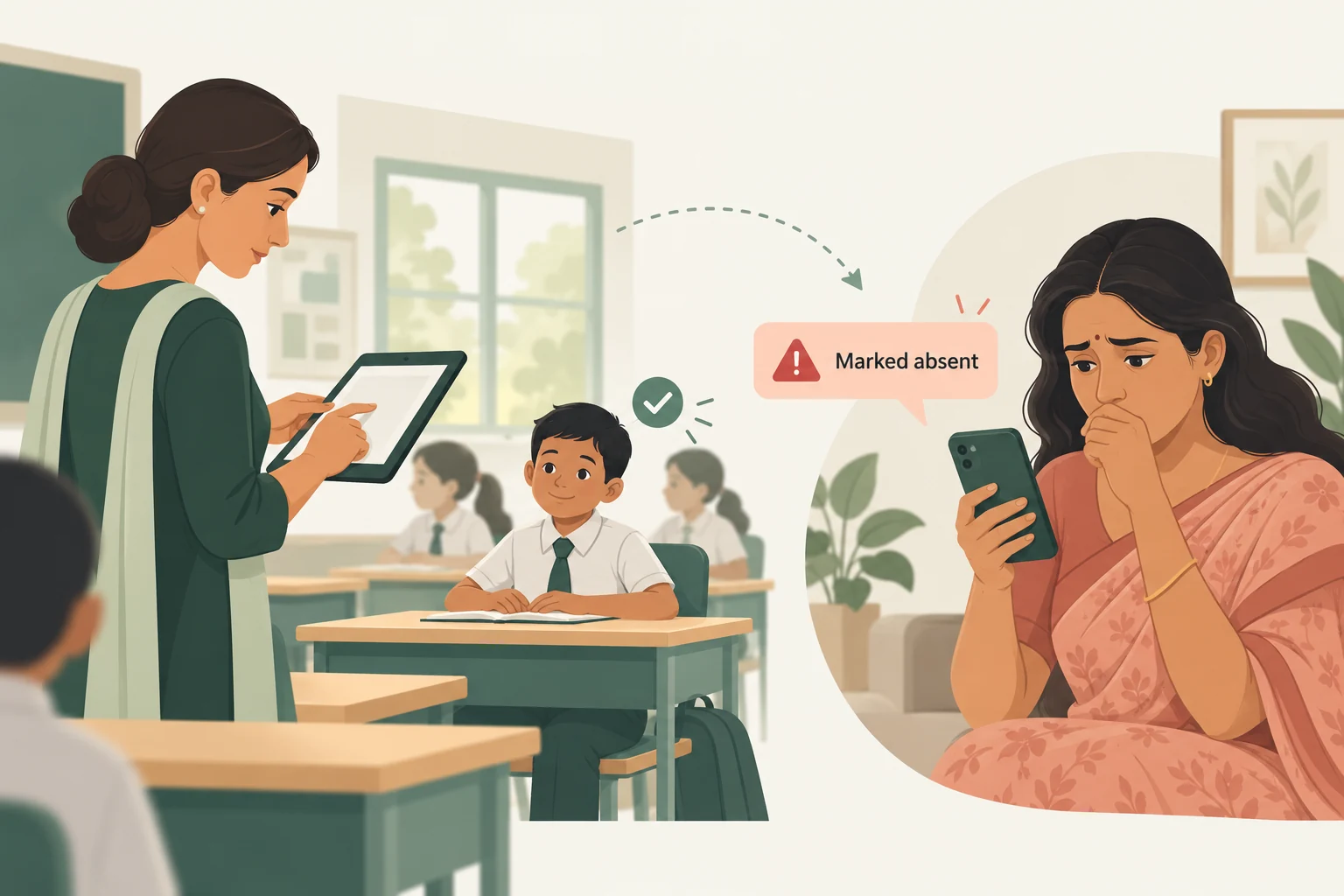
Teachers recorded daily attendance on mobile. An accidental tap could mark a student who was present as absent, even when the child was already in the classroom.

Once attendance was submitted, an absence notification could reach the parent immediately, without a dedicated verification step or time to correct the mistake. For a parent who had sent their child to school, the message created confusion, worry, and an urgent call to the school.

The challenge was to help teachers verify unexpected absences and catch mistakes before parents were notified, while giving schools control over when those messages were sent.

AccuracyAttendance marking
VerificationUnexpected absences
TimingParent notifications
A student is present in class while a parent receives an incorrect absence alert and becomes concerned.
UX AUDIT
Existing User Journey

03A Quick Submission. No Verification Step.

The original workflow prioritized speed. Teachers could mark attendance and submit it quickly, but the process lacked safeguards against accidental absence markings.

Read the workflow shown in this video

Existing teacher attendance workflow

  1. The teacher opens classroom attendance and marks students present or absent.
  2. Attendance can be submitted without a separate review of the absent students.
  3. An accidental absence marking can therefore trigger an incorrect message to a parent.

Teacher attendance

The existing experience for marking and submitting classroom attendance.

  1. Open Attendance

    01

    The teacher opens the classroom attendance list.

  2. Mark Students

    02

    Present and absent statuses are selected, with room for an accidental tap.

  3. Submit Attendance

    03

    Attendance is saved without a separate absence verification step.

What parents experienced next

An immediate absence alert could contradict what the parent knew, prompting a call to confirm their child’s whereabouts.

Read the workflow shown in this video

Existing parent notification workflow

  1. The parent receives and opens an absence notification after attendance is submitted.
  2. The notification shows the child as absent, which may conflict with the parent having sent the child to school.
  3. The parent then needs to contact the teacher or school to verify the child’s whereabouts.

Parent notification

The parent-facing experience after an absence alert is sent.

  1. Receive & Open the Alert

    01

    The parent opens the absence notification sent after attendance is submitted.

  2. Read the Absence Status

    02

    The child is marked absent, conflicting with the parent’s expectation that they are in class.

  3. Contact the School

    03

    The parent calls the school or teacher to confirm the child’s whereabouts and clarify the record.

UX Audit

04The Problem Wasn’t Just an Accidental Tap.

The audit connected gaps in attendance entry, verification, and delivery with their consequences for parents. Each finding below links a workflow problem to the reassurance or safeguard the experience needed.

Where the experience broke down

Explore each identified problem
01Accidental absence selection

A present student could be recorded as absent after an unintended tap.

Parent impact

The alert conflicts with the parent’s understanding of the day.

What needed to change

Make attendance states clear and reviewable before submission.

02No absence verification

Teachers could submit without explicitly checking the absent students.

Parent impact

An unchecked status can become a worrying message about the child.

What needed to change

Require confirmation of the absence list before notifying parents.

03No prior leave visibility

Teachers lacked advance context about planned absences.

Parent impact

Parents may have to repeat information they already shared.

What needed to change

Show parent-provided leave details alongside attendance.

04Immediate notification

An alert could reach the parent as soon as attendance was submitted.

Parent impact

The parent may seek urgent reassurance before staff notice the error.

What needed to change

Separate attendance submission from notification delivery.

05No correction window

Teachers had no grace period to fix an accidental marking before the alert.

Parent impact

Correcting the record cannot undo an unnecessary safety concern.

What needed to change

Allow a correction window before dispatching the message.

06Limited delivery control

Schools could not tailor notification timing to their attendance process.

Parent impact

Communication may arrive before the school has verified the record.

What needed to change

Give schools clear control over the notification schedule.

Beyond correcting a status

Confirm the child’s whereabouts, correct the attendance entry, and clearly explain the discrepancy to the parent. Accuracy and reassurance must work together.

The Emotional Cost

05One Incorrect Alert. A Much Bigger Loss of Trust.

For parents, an incorrect absence alert can turn uncertainty into anxiety, then panic about their child’s safety. Even after the school confirms that the child is in class, confidence in its communication can remain damaged. Explore this illustrative emotional journey to see why accurate notifications matter.

From a notification to a trust gap

Explore the five moments
Moment 01 · Unexpected alert

Emotional response
Confidence in the school
01 / 05
DESIGN IMPROVEMENTS
Design Decisions

06Four Safeguards Before an Absence Alert.

I introduced four connected improvements to make attendance recording more reliable. Each addressed a different point of failure, from knowing about planned leave to verifying unexpected absences and controlling when notifications reach parents.

01 · Parent-Informed Leave

Parents can inform teachers about a planned absence in advance, such as the previous day. The leave information becomes visible during attendance marking, giving teachers context before recording the student’s status.

Design impact

Better visibility into expected absences.

02 · Mandatory Absence Verification

Students marked absent appear in a dedicated checklist. Teachers must verify each student’s absence and explicitly confirm the relevant checkbox before completing the verification process.

Design impact

Reduces the likelihood of accidental absence markings going unnoticed.

03 · Attendance Correction Window

When a school uses scheduled notifications, teachers have time between attendance submission and notification dispatch to review and correct mistakes.

Design impact

Provides an opportunity to prevent incorrect alerts.

04 · Configurable Notification Timing

School administrators can choose between immediate notification delivery and a scheduled dispatch time, aligning parent communication with the school’s attendance process.

Design impact

Gives schools greater control over notification timing.

Administrative Control

07A 30-Minute Window Can Prevent a Wrong Message.

The redesigned notification settings allow schools to schedule absence alerts rather than sending them immediately. When attendance is taken at 9:00 AM and notifications are scheduled for 9:30 AM, teachers have an opportunity to correct attendance before parents are notified.

Read the workflow shown in this video

Updated notification settings workflow

  1. School staff choose how absence notifications should be delivered.
  2. Immediate delivery follows verified attendance; scheduled delivery provides time for correction before dispatch.
  3. The timing component below illustrates a configurable correction window.

Notification settings

Administrators choose notification channels and immediate or scheduled delivery.

Try the Delivery Settings

08Explore the Time Between Submission and Notification.

Switch between immediate and scheduled delivery, then adjust the correction window to see when parents would receive an alert. This example illustrates the timing choice; it does not change a school’s settings.

Notification Delivery

9:00 AM

Attendance submitted

Teacher saves verified attendance

9:00–9:30 AM

Correction window

Teacher can review and edit attendance

9:30 AM

Parent notification

Absence information delivered

30-minute scheduled correction window

Teachers have time to correct an accidental absence before the scheduled alert is sent.

Interactive schedule example; 9:00–9:30 AM is not necessarily the default for every school.

Parent-Informed Leave

09Parents Inform. Teachers Stay Informed.

Parents can now inform the school about a planned absence from the parent app by selecting the leave date and providing a reason. Teachers and staff can view that information against the student’s record, giving them context before marking attendance instead of discovering the reason through a follow-up phone call.

Read the workflow shown in this video

Parent-informed leave workflow

  1. The parent opens Inform Leave and selects the leave date.
  2. The parent adds a reason and shares the leave information with the school.
  3. Staff can view the leave details while recording attendance, providing context for a planned absence.

Parent-informed leave

Parents share planned absences in advance so teachers have the context while marking attendance.

  1. Open Inform Leave

    01

    The parent opens the leave option in the parent app.

  2. Choose the Date

    02

    The parent selects the date of the planned absence.

  3. Add a Reason

    03

    A short reason gives the school useful context.

  4. Share with the School

    04

    The parent submits the leave information for the student.

  5. Staff View the Details

    05

    Teachers and staff see the leave date and reason against the student record.

  6. Mark Attendance with Context

    06

    The teacher reviews informed leave and verifies the student’s attendance status.

Try the Information Flow

10See How a Parent’s Leave Details Reach Staff.

Change the leave date or reason in this example, then share it to see the same information appear in the staff view. The date and reason stay attached to the student’s record.

From the parent app to the staff view

Interactive example
Parent view

Inform leave

Share a planned absence with the school.

Sample studentClass VI · Section A

Try changing the date or reason, then share the leave.

Teacher & staff view

Leave information, alongside attendance

The student’s planned absence is visible before attendance is recorded.

Sample studentClass VI · Section A
Informed leave
Leave date
19 Oct 2026
Parent’s reason
Family function
Informed by parent
Context for the teacher

Review the parent’s leave information while marking attendance and verify the student’s actual status.

Illustrative preview of the information flow. Entries update this example only; no leave request is sent to a school.

Redesigned Attendance Experience

11A More Reliable Attendance Experience.

The redesigned experience connects parent-informed leave, verified teacher attendance, and configurable notification delivery. This recording focuses on how teachers review informed leave and verify absences before submitting attendance.

Read the workflow shown in this video

Redesigned teacher attendance workflow

  1. The teacher reviews attendance with available parent-informed leave context.
  2. Students marked absent are reviewed and explicitly confirmed before submission.
  3. Where scheduled delivery is configured, the teacher can correct a mistake before the notification is sent.

Teacher attendance

Review informed leave, mark attendance, and verify each absence before submitting.

Updated attendance workflow

From advance leave information to verified parent communication.

  1. Parent Informs Leave

    01

    Planned leave is submitted in advance and made visible to the teacher.

  2. Teacher Marks Attendance

    02

    The teacher records attendance on mobile, with informed-leave details available for reference.

  3. Review Absent Students

    03

    The system displays the students marked absent in a verification checklist.

  4. Confirm Each Absence

    04

    The teacher verifies each absence and checks the corresponding confirmation box. Incorrect markings can be corrected.

  5. Submit Verified Attendance

    05

    Attendance is saved after the required verification.

  6. Dispatch Parent Notifications

    06

    Notifications are sent according to the school’s selected immediate or scheduled delivery setting.

Design Strategy

12Adding Friction Where Accuracy Matters.

Instead of adding more steps to the entire attendance process, I focused on introducing deliberate checks at the moments where mistakes could affect parents. The goal was to preserve fast daily attendance entry while requiring additional confidence before absence information was communicated.

Three decisions. One safer hand-off.

01Use context

Bring known leave into view.

Show parent-informed leave alongside attendance so the teacher can distinguish an expected absence from an unexplained one.

02Require confidence

Verify before notifying.

Ask the teacher to deliberately confirm each student marked absent before the record proceeds to parent communication.

03Allow recovery

Leave room for a correction.

Let the school schedule notification delivery, creating an opportunity to correct an accidental absence before an alert reaches a family.

CONCLUSION
Before & After Explorer

13From One-Tap Submission to Verified Communication.

Explore how each improvement changes the attendance experience for teachers and parents, adding safeguards without unnecessarily complicating routine attendance marking.

Before & After Explorer

Four safeguards. More reliable communication.

01 / 04

Before
After
Design Impact

14Reducing False Alerts. Building Trust.

The redesigned flow aims to replace avoidable anxiety with reassurance. Verified attendance, parent-informed leave, and a correction window support more reliable communication. This illustrative journey shows the intended emotional experience after the design changes, from fewer false alarms to stronger confidence in the school.

From careful checks to greater confidence

Explore the five moments
Moment 01 · Unexpected alert

Emotional response
Confidence in the school
01 / 05

Intended design benefits. A measured reduction in false alerts would require before-and-after notification error data.

Accessibility · WCAG 2.2

15Making Attendance Decisions Clearer and Safer.

The attendance redesign adds clearer status information, explicit verification, and an opportunity to correct mistakes. These WCAG 2.2 references connect those safeguards to accessible decision-making.

SC 1.4.1Level A

Name the attendance status

Use of Color

Written attendance states and leave context provide meaning alongside visual status treatments.

Implementation check

Verify that present, absent, and leave states can be distinguished without relying on color alone.

Read W3C guidance (opens in a new tab)
SC 2.4.6Level AA

Make the next action clear

Headings and Labels

Distinct labels for absence verification, informing leave, and notification settings explain the purpose of each step.

Implementation check

Review every heading and control label to ensure it describes its actual topic or action.

Read W3C guidance (opens in a new tab)
SC 3.3.2Level A

Explain what parents need to share

Labels or Instructions

The parent-informed leave flow separates the leave date and reason, giving teachers more useful context.

Implementation check

Verify that the date and reason controls have visible instructions, with any required inputs clearly identified.

Read W3C guidance (opens in a new tab)
SC 3.3.4Level AA

Review before a consequential update

Error Prevention (Legal, Financial, Data)

Absence verification and the correction window reflect the review-and-correct approach to preventing consequential data errors.

Implementation check

Confirm applicability to the stored data operation and test a working review, correction, or reversal mechanism. A notification delay alone does not establish conformance.

Read W3C guidance (opens in a new tab)

These are design-to-guideline mappings, not a WCAG conformance certification. The implementation checks identify what must be verified in the working product.

Interactive prototypes

16Explore the attendance prototypes.

Compare the existing attendance experience with the redesigned flows. Prototype links will be added when available.

Before · Existing flow

Experience the original workflow

Explore the original teacher attendance and parent-notification experiences.

After · Updated flow

Experience the redesigned workflow

Explore verified attendance, parent-informed leave, and configurable notification delivery.

Explore the case study

Jump to any section